Showing posts with label backup. Show all posts

Saturday, May 27, 2017

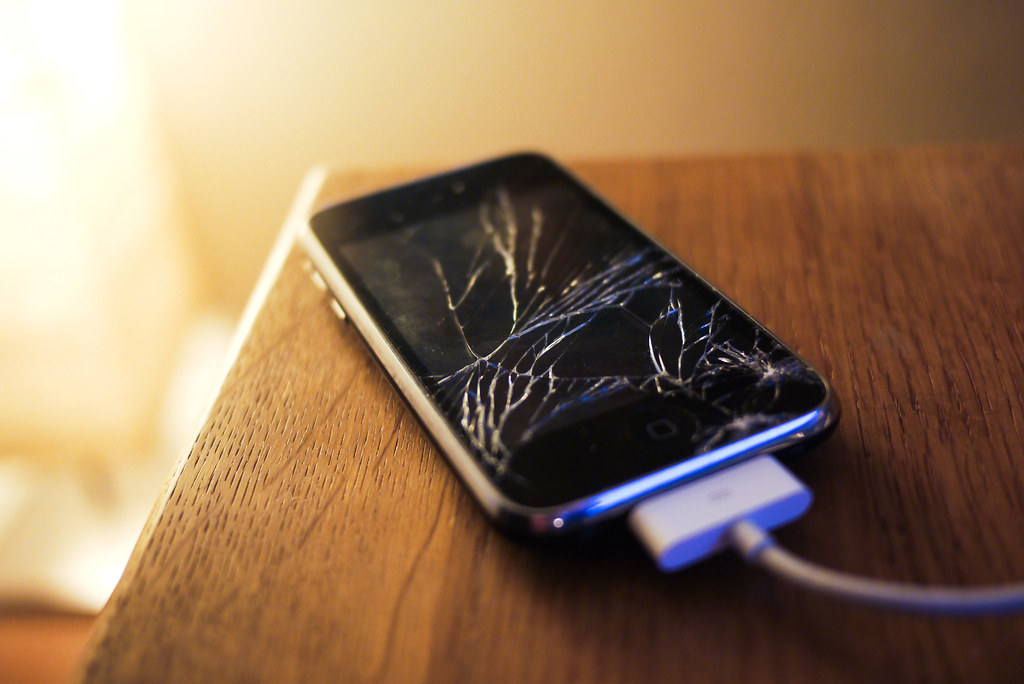
Handing Over Your Handset for Repairs? Do this first!

Almost everyone faces this challenge.  Your handset is wonky and in need of professional attention.  It’s time to take it to the repair shop to fix whatever’s gone wrong and you’re feeling justifiable anxiety.

What if they copy off my data?  What if they damage it further?  What if they install substitute parts?  What if they install malware?  While not all repair shops are unscrupulous, it is always best to take a few steps to add extra protection.

Step 1: Prepare

Prepare your smartphone by doing two things. First, un-encrypting the data.  That's right, remove the encryption security feature temporarily.  This will make it easier to move data to the cloud or another device.  Second, make a note of both the phone IMEI number and the battery serial number (if removable).
Step 2: Wipe After Backup

It may seem extreme, but the best way to protect your data is to not hand it over at all.  Leaving your password on offers some protection, but it can also prevent the repair technician from doing a thorough job or repairing and testing the phone.

Take a few moments to backup the handset to the cloud or a computer, ensure your data is retrievable and then proceed to wipe all settings and data.  In effect, what you are doing is a factory reset to make the phone like the day you bought it.

Step 3:  Remove the SIM & SD card

Protect your privacy by retaining your SIM card.  If the technician needs to make a test call, they should have a compatible SIM on hand expressly for this purpose.  Just be sure to let the technician know if your handset is locked to a specific network.

Similarly, pull out your micro SD card (if you’ve got one installed).  Chances are, you’ve got more than just precious pictures on the card.  Some smartphones save apps and critical data on the removable storage device in order to free up space on the unit.

If you forgot to unencrypt your card before removing it from a wiped handset, your data may be irretrievably lost.  That’s why it’s listed at Step 1; it’s important!

Step 4: Take Pics

Rope in a friend to assist by using their smartphone to take pictures of your smartphone.  Engage your ‘CSI’ self and take multiple pics from various angles including images of any damage, images of the internal components and clear images of the battery including the serial number where possible.

Step 5: Protective Packaging

Don’t transport your phone without protective packaging.  Break out the original box, if you still have it, or some bubble wrap, if handy.  You want to ensure that you don’t pick up any more bumps and scratches between when you transport it to the shop and when they return your repaired handset.

Step 6: Timestamp the receipt

Note the specific date and time your phone left your possession and keep this information with you.  Let’s hope your phone is returned in perfect condition in a short time.  If not, you made need your timestamped receipt to lodge a complaint.  Worse, you made need your receipt to prove that you had no access to your handset for a period of time.  The rest, I will leave to your imagination.


Once you've got your precious instrument back, check it thoroughly to ensure there are no new scratches.  Make sure it is your phone and battery by inspecting the IMIE and battery serial number.  Factory reset the phone one more time.  Install your SIM and micro SD card. Then restore from your backup.

Once you're up and running, it is time to encrypt your data for maximum protection.  Then back it up again.  You're ready to go.  Enjoy your repaired phone!


Sunday, February 15, 2015

T4L - New Age Protection

I am updating my being safe online tips.  After all, it is a new year and there are new threats out there.  What worked last year simply may not be enough for 2015.  So here goes; make some time to not only read but action these safety steps.


Step 1: Back up, run anti-virus, back up again
Do it now, do it again and again.  Only the first back up is hard, each subsequent back up is incremental and therefore doesn’t take much time.  Backing up is your first and best defense against data loss which can happen for more reasons than I have space to mention.  Many systems can automate the process to an external drive or cloud service, so your only excuse is .. none.

Make sure that you download, install, run and update a good anti-malware programme, even for your mobile device.  Get rid of or prevent viruses, adware, spyware and other wares designed to destroy your life.

Step 2: Set Strong Unique Passwords
Passwords can be a pain, but they are also your first line of defense against attacks.  Forget the old rules, passwords now need to be longer than eight characters, need not be a recognizable word and need to be unique for each account.  Yes, you read that right - each account.  Since remembering scores of complicated passwords would be too much, it is time to breakout a good password manager to keep things in check.

Step 3: Secure Everything
It can be tempting to jump on a free WiFi hotspot, skip the hassle of configuring a firewall or browsing quickly through unsecured websites, but try to remember how temptation worked out for Eve.

Take a moment to set up a new password on your home wireless router and all internet enabled devices like IP cameras.  Take a moment to set up a firewall on your ‘outer, turn off Discovery and disable file sharing, especially if you plan to log on to public WiFi.

Step 4: Avoid Scams
Certainly it is not recommended that you click on links in email, but if you do, make sure there is a little lock showing in your browser window confirming that the site is secure.

Speaking of security, secure your credit card by using a dedicated ‘online card’ issued by your bank, a one time/pre-paid card or a service like Paypal to create a safety zone around your prized plastic.

Online email services like Google, Yahoo! and Outlook all offer built in virus scanners to reduce the likelihood of nefarious downloads, but it is good to remain vigilant.

Step 5: Repeat
Yes, repeat.  Continuous protection requires continuos updating.

Here’s to a safe 2015!

Tech4Life airs every Wednesday @ 8:15am on RJR94FM

Thursday, November 7, 2013

High Speed Internet - Cloud Backup

Ideally, your computer system should have three copies: a physical backup on a external drive, a second, offsite backup and a cloud backup.


The first physical backup is extremely accessible and will be the first point of contact if files need to be restored.  However, if there is more than a system crash, but a small catastrophe such as a theft or fire, the original and the first backup in close proximity are both vulnerable.

This is why an offsite backup is also recommended.  Having a full system back up at a friends house, or other suitable location, which can be accessed if the data and main backup are destroyed is prudent.

But again, a larger catastrophe, or even something as simple as your friend being on vacation with the house keys could render you incapacitated.

Fortunately, the third cloud based backup remained immediately accessible at all times.

In its simplest form, backing up to the cloud simply means saving files online; this could be a complete backup or a backup of select files.  It should also include the backup of other devices, their data and their settings.  Devices like smartphones and modems, ideally, should make the backup list.

The simplest method is to email files to yourself.  Cloud based email has become more sophisticated and many services have storage tied to the account.  iCloud, Amazon Cloud Drive, Google Drive and SkyDrive all offer free online storage that can be used to backup important files up to a point.

Free storage is generally available from your Internet Service Providers (ISP) as well.

If you prefer to have your own cloud, advanced users can configure an external hard drive to be accessible over the internet at any time. Less skilled users can opt for a pre-programmed, pre-packaged personal cloud option like pogoplug.

If that is still too much for you, paid services like Dropbox and Carbonite can work in the background to ensure you, and your data, are covered.

When deciding on which option is best, nothing beats a free trial.  Assess the option based on several factors including security and encryption policies, accessibility, scalability of space and multipoint syncing.

The first backup can take several hours and even days.  Even the subsequent, incremental backups can take time.  Especially without the benefit of a reliable, high speed internet connection.  Ultimately however, cloud backup offers the most reliable, cost effective option to ensure full data recovery.

RJR's Tech4Life airs every Wednesday at 8:15 am.


Thursday, May 23, 2013

Hurricanes In the Digital Age


Each year, with the official start of the hurricane season on June 1, I dust off and update my disaster preparation plan.  And updating is important, because, my how things have changed.

Back in the day, my parents told me where we would muster (such an odd word), if worst came to worst.  Now, with the family so geographically dispersed, we talk about our communications plan; in effect, we lay out who will call, email, Facebook or tweet who to relay important survival information.

For Gilbert in 1988, my Mom scrambled to find a battery operated radio so that we could listen for updates on the storm.  For Sandy last year I downloaded some important apps and followed prominent media houses on Twitter for my primary news and information.  I tracked the storm from beginning to its bitter end on my mobile phone.

I still stock up on food and water, turn up my fridge and fill my bathtub.  But these days, all of that is just as important as charging all my electronic devices (smartphone, laptop, MiFi and the like), getting a car charger (and filling my car’s gas tank so I can use it to charge) and stocking up on battery packs and spare batteries … just in case.

My important documents are still in a Ziplock® bag, but they are also digitally scanned and uploaded to the cloud.  Heaven forbid the bag floats away or is lodged under a tree, I can access the documents I need from any internet enabled device.

Right after Gilbert, my neighbours and I hit the streets; in effect we went to ‘fass’ and see what damage had been done next door.  These days, I turn to photo and video sharing sites to see the impact of the storm all over the world!


ThenNow
Muster PointComms Plan
Stock up on food and waterGet car charger and battery pack
Turn up thermostat on fridgeCharge everything
Secure important documents in water proof bagsSecure important documents in the cloud
Get battery operated transistor radioFollow news outlets on Twitter
Compile emergency number contact listBookmark websites

Resources