Showing posts with label smartphone. Show all posts

Saturday, May 27, 2017

Handing Over Your Handset for Repairs? Do this first!

Almost everyone faces this challenge.  Your handset is wonky and in need of professional attention.  It’s time to take it to the repair shop to fix whatever’s gone wrong and you’re feeling justifiable anxiety.

What if they copy off my data?  What if they damage it further?  What if they install substitute parts?  What if they install malware?  While not all repair shops are unscrupulous, it is always best to take a few steps to add extra protection.

Step 1: Prepare

Prepare your smartphone by doing two things. First, un-encrypting the data.  That's right, remove the encryption security feature temporarily.  This will make it easier to move data to the cloud or another device.  Second, make a note of both the phone IMEI number and the battery serial number (if removable).
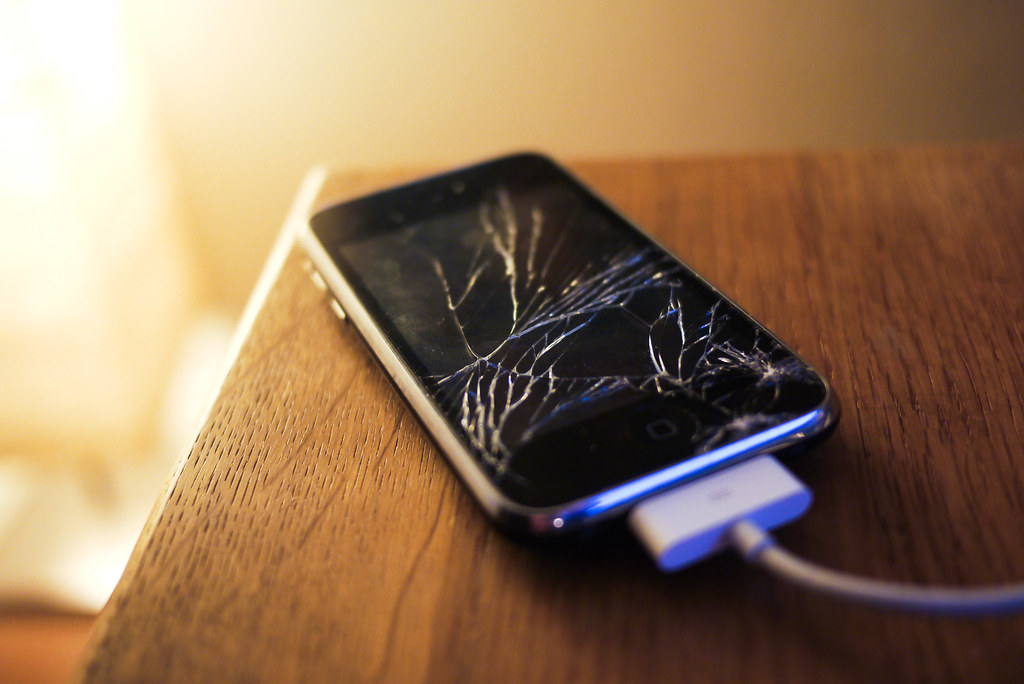
Step 2: Wipe After Backup

It may seem extreme, but the best way to protect your data is to not hand it over at all.  Leaving your password on offers some protection, but it can also prevent the repair technician from doing a thorough job or repairing and testing the phone.

Take a few moments to backup the handset to the cloud or a computer, ensure your data is retrievable and then proceed to wipe all settings and data.  In effect, what you are doing is a factory reset to make the phone like the day you bought it.

Step 3:  Remove the SIM & SD card

Protect your privacy by retaining your SIM card.  If the technician needs to make a test call, they should have a compatible SIM on hand expressly for this purpose.  Just be sure to let the technician know if your handset is locked to a specific network.

Similarly, pull out your micro SD card (if you’ve got one installed).  Chances are, you’ve got more than just precious pictures on the card.  Some smartphones save apps and critical data on the removable storage device in order to free up space on the unit.

If you forgot to unencrypt your card before removing it from a wiped handset, your data may be irretrievably lost.  That’s why it’s listed at Step 1; it’s important!

Step 4: Take Pics

Rope in a friend to assist by using their smartphone to take pictures of your smartphone.  Engage your ‘CSI’ self and take multiple pics from various angles including images of any damage, images of the internal components and clear images of the battery including the serial number where possible.

Step 5: Protective Packaging

Don’t transport your phone without protective packaging.  Break out the original box, if you still have it, or some bubble wrap, if handy.  You want to ensure that you don’t pick up any more bumps and scratches between when you transport it to the shop and when they return your repaired handset.

Step 6: Timestamp the receipt

Note the specific date and time your phone left your possession and keep this information with you.  Let’s hope your phone is returned in perfect condition in a short time.  If not, you made need your timestamped receipt to lodge a complaint.  Worse, you made need your receipt to prove that you had no access to your handset for a period of time.  The rest, I will leave to your imagination.


Once you've got your precious instrument back, check it thoroughly to ensure there are no new scratches.  Make sure it is your phone and battery by inspecting the IMIE and battery serial number.  Factory reset the phone one more time.  Install your SIM and micro SD card. Then restore from your backup.

Once you're up and running, it is time to encrypt your data for maximum protection.  Then back it up again.  You're ready to go.  Enjoy your repaired phone!


Thursday, May 25, 2017

6 Easy Steps to Slash Your Smartphone Bill

Smartphones are great!!

They keep us connected in a myriad of ways.  They provide us with hours of entertainment.  In some cases, they control our homes and keep us fit.  It seems like there is very little a smartphone can’t do, including saving you money!

The price of convenience can be very high.   Call charges.  Data overages.  Feature-rich contracts.  They all come at a cost.  But that cost is manageable by taking a few simple steps to tame your smartphone bill.

Step 1:  Chose the Right Plan

Bundled minutes and data.  Free weekends and nights.  CUGs (Closed User Groups) and other options are only good if they apply to you.  Scrutinise your bill regularly and update your plan periodically as your usage habits change.

There is no point in paying for features that you don’t use or underutilise.  Compare your plan to other plans offered by your telecom or to plans offered by other telecoms.  After all, thanks to number portability no one is trapped by a service provider.

Step 2: Consider Alternatives

Is it a smartphone, right?  So, it’s connected.  Some of us have already moved away from traditional cellular calls (you can go ahead and laugh if you remember life before cellular), while others are still waiting to hop on the VOIP (voice over internet protocol) bandwagon.

But VOIP, video conferencing and messaging are all great alternatives to phone calls.  There is a plethora of apps that offer some, or all, of these options in one neat package.  Most notably is WhatsApp.  This nearly ubiquitous app offers text messaging, file sharing, voice calling and video calling on an encrypted platform for free.  Only data charges apply if no Wi-Fi.

Concerns about call quality are diminishing fast as the technology evolves.

Step 3: Tame Data Use

So, sure.  I just said VOIP is a great option, but care is still needed in data management.

Generally, VOIP options don’t consume that much data, but every bit and byte can add up.  Especially if you’re not managing your data use correctly.

You should disable background refresh on most (if not all) apps, delete unnecessary apps and close apps that you’re not using.  Apps can really drain your data and rack up expenses quickly and overages cost real money.

The trade off to save money by cutting data use in favour of Wi-Fi is not absolute, especially when dealing with sensitive data.  Don’t jump onto any old hotspot just because it's free.  Make sure it's safe before your browse; especially when visiting banking and email sites.


Step 4: Plan You Roam

If you thought your smartphone bill was high, try taking it on a trip overseas!

Roaming charges can put you in the poorhouse.  Make sure that you have the right roaming plan.  That’s a plan customised to the region you are visiting and your call, text and data needs.

Are you planning a long trip or a short trip?  Going on vacay or on business?  Is there reliable Wi-Fi in the hotel and other destinations on your itinerary? Do you need access to your VPN?  Your answers to these questions will help determine if you can find a cost-effective plan or if you need to get a local SIM.

Step 5: Don’t Roam Overboard

In principle, data is cheaper than calling.  That principle does not necessarily apply.

Before you head out to the airport, turn off data roaming for all non-essential apps to reduce the temptation to “just check” (this tip helps with my Amazon addiction) and consider if you must post to Instagram (or similar social media apps) in real time or if posting from the free hotel lobby Wi-Fi in the evening is just as good.

Save even more money: download maps for the destination and enjoy free access to GPS navigation for your trip.

Step 6: Ditch Voicemail

Seriously?  You still have voicemail?  That’s so 90’s.  Get rid of it.  There is no need to pay for calls you are not even receiving; especially when roaming.

Vigilance is the key to enjoying both the convenience and the cost of owning a smartphone.

Wednesday, April 6, 2016

T4L: WhatsApp Introduces Encryption

Yup, arguably the most popular messaging platform in the word just launched end to end encryption.  So, whether you’re chatting about your plans to attack a killer sandwich or to blow up an exam, your instant messages are protected, as of, well, now.

End to end data encryption is certainly not new.  Less popular but more secure apps like Telegram have been offering the feature for a long time.  But, the Facebook-owned Whatsapp has about a billion, with a ‘b’,  users around the globe making this announcement significant.  Note too; the feature is not optional.  I repeat, it is not optional.

Encryption is turned on by default, for everyone who uses the app.  Whatsapp has no access to the data in conversations and cannot be compelled by any government body or agency to turn over your conversation data.

Unlike email encryption systems, Whatsapp provides a separate, new, unique encryption key for every new conversation.  The key itself is verifiable between users, adding to the level of security offered.

Of course, the feature is useless as a privacy tool if you leave your phone lying around unlocked, but short of that, you can rest assured neither the government or your neighbour can access your Whatsapp messages.  Happy texting!

Tech4Life airs every Wednesday morning at 8:15 on @RJR94FM

Wednesday, February 10, 2016

Made in Value: LASCO's Huawei Product Range Has Options

Sure Apple and Samsung dominate the market when it comes to handsets and tablets.  They offer great high end devices with matching prices.

So, is there an option?  Huawei.  Yup.  Huawei recently rose to the the #3 spot in the mobile market with a suite of devices that includes handsets, tablets and even wearables.

Bang, Bang Features

Locally, the Chinese brand has partnered with LASCO Financial Services to make the line available to Jamaica.  As a special bonus, all Huawei phones distributed by LASCO are unlocked, making them perfect for a post number portability landscape.   Bang!

Many handsets are also dual SIM; this is great if you have a work and personal number, like to have a number with both Digicel and FLOW or if you just like to show off with two numbers. Bang!

Value Handsets

The impressive range of seven featured handsets on offer include the G7 and G730, P8 and P8 Lite, the G Play Mini and the very affordable Y520, Y525 and Y535.  All handsets take advantage of the Android OS and have a clean, un-cumbersome user interface (UI).  Gram for gram, Huawei devices offer comparable features to their top rivals.

Talk About Range

Huawei TalkBand B2
Sure, handsets are sexy.  But Huawei takes it further by offering tablets and wearables.  At LASCO, you can pick up the Media Pad 2 for a lot less money but with excellent build quality - a feature often absent from budget tablets.

Most notable however are the TalkBand B1 and TalkBand B2, exclusively offered by LASCO.  The device is a trendy looking smart watch and activity tracker that pops out to become a bluetooth headset … a headset!

This awesome functionality makes the TalkBand more than just a another smartwatch.  For someone like me who tends to lose small gadgets often, I think its one of the best new tech features in recent times.

But wait!  That is not all.  The TalkBand B1 and B2 works seamlessly with Huawei gear … AND iPhones.  Amazing!


Monday, September 28, 2015

Mobile Wallet: Its All About the Trinity

You’ve heard the term mobile wallet, money money and mobile payments used interchangeably because they often refer to the same thing - ditching cash in favour to mobile phones for financial transactions.

Mobile wallet services are popular all around the world; from simple SMS based systems in Kenya, carrier supported systems in Haiti to advanced handset tied systems like Google Wallet and Apple Pay, cellphone based payment systems are gaining acceptance.

Locally, Conec is the first to market with a mobile wallet service with a range of features including bill payments and person to person payments.

Can these services be trusted?  Conec says yes!


Conec, a service of JUCCL, in partnership with global provider Mozido, combines a range of tools to offer a comprehensive security system.  The tools include:
  • a guarantee that money will not be lost if the handset is lost or stolen, because the account information including account value, is stored in the cloud
  • encrypted data stored in accordance to internationally accepted standards
  • online access to account and funds, no handset required
  • a trifecta of user based safeguards - a PIN, a personal password and a secret word to restrict access


Tech4Life airs every Wednesday morning at 8:15 AM on RJR94FM.

Dollars & Cents vs Bits & Bytes

Whether you call it a mobile wallet, mobile payments or mobile money, you are likely referring to the same thing - the ability to replace your bulky, plastic filled purse or wallet with a mobile wallet service.


Services vary from provider to provider, but in general, there are a lot of things you can do with a mobile wallet, like:

Cash In, Cash Out
Rather than walking around with cash, you can put ‘cash in’ your mobile wallet at various locations and have immediate access to your funds on your phone.

Top Up Call Credit
Forget the corner store, buy mobile phone credit and top up immediately without surcharges or the inconveniences of having get up and go.

Person to Person Transfer
Send money across the city or across the country to relatives and friends with a few taps on your phone.

Pay Bills
From utilities to stores to vendors, money in mobile wallets can be transferred on demand to creditors to pay for goods and services.

The irony is, with a mobile wallet, its your money that moves, not you.


Tech4Life airs every Wednesday morning at 8:15 AM on RJR94FM.

Monday, February 16, 2015

T4L: Low Tech Cleaning

Some tech threats are decidedly more low tech than others.  Germs, parasites, microbes and quick frankly plain old disgusting gunk, can accumulate on our devices.  Worse, because we are afraid to clean them, we sometimes leave these dregs to fester.

Well, no more!  Let us resolve to scrub away any crud that may have built up on our electronics.

All devices can be cleaned, just in different ways.  For example, monitors require a different approach than keyboard.  So let’s break them down by categories.  But first, let us gather the needed supplies.

Electronics Cleaning Supplies List

  • Lint free Microfibre cloth (terrycloth texture)
  • Cotton swabs
  • Distilled, filtered or boiled water
  • Vinegar
  • Rubbing alcohol
  • Compressed air or vacuum
  • Elbow grease


Never apply liquids directly to electronics.  Never use paper towels.

Electronics Cleaning Dump List

  • Windex and other solvents
  • Disinfectant
  • Paper towels and tissue paper


Monitors and LCD TVs
If your TV or computer monitors screen looks spotty, smudges, marks and dried saliva are the common culprits.  Rub them with a clean microfibre cloth and light elbow grease.  Be firm, but don’t press too hard or risk damaging the liquid crystals inside the screen.  Dampen - never wet - the cloth with diluted vinegar, to amplify the effects of the elbow grease as needed.

Phones, phablets, and other mobile devices
Since mobile device screens are made to be touched (for the most part), feel free to add more elbow grease for maximum cleaning power.  And, since  mobile device screens tend to touch our faces, feel free to replace the diluted vinegar with diluted rubbing alcohol to power punch gems to oblivion.

Keyboards, mice and other input devices
Input devices are generally quick hardy, after all, they were designed to handled.  They also tend to be a reservoir for spilt juices, coffee and other liquids (read as nesting ground for slime).  Feel free to pull these devices apart and attack with compressed air or a vacuum depending on your preference.  Next, hit them with cotton swabs dampened rubbing alcohol.  Then wipe them down using the microfibre cloth.  Then hit them with air again before reassembling.


Whether your motivation is aesthetic or antiseptic, a cleaning regimen is definitely rewarding.


Tuesday, May 6, 2014

Tech Gifts for Mom (RJR's Tech4Life)

For all mothers do, it is a shame that they only get one day of recognition.  But, children, sisters, brothers, and other loved ones can certainly try to make that one day special with a gift of technology.  After all, you can't really expect Mom to splurge on herself can you?

The best tech gift for mom isn't guided by what's hot, fresh, new or discounted.  But rather, the best tech gift for mom is guided by her appetite for tech.  But, whether she's a newb or mastermind, there is a gift for her.

Go mobile!
Mobile phones, tablets and laptops are a great accessory for every kind of mom.  Busy moms will love the apps and featured designed to streamline various daily tasks.  Retired moms will love the to look at photos or join in video calls with the grandkids.

Her learning curve and preference will help you decide whether to go with a  Windows, Android, iOS or Blackberry device.

Go home
If there is a chance that your mom's home is her favourite place for relaxation, then perhaps a smart TV is  your best gift bet.  Beyond HD, smart TVs are internet connected to bring real power to on board apps like Facebook and Twitter.  Mom can switch effortlessly between Netflix or YouTube or cable while searching for recipes all on one living room centre piece.

Go healthy
If the idea of mom being lazy in front of the TV is not your thing, why not encourage her to get healthy.  Why not accessorize mommy with a wearable fitness tracker.  They work better with a companion smartphone, so check out the compatibility with moms existing handset before purchase.  Or better yet, buy her a new phone with the smart watch.

Of course, she will need a place to work out.  For that, consider a connected treadmill complete with WiFi and Bluetooth to monitor movements and share successes with other moms online.

Just remember, its not the size of the gift that reflects your love for mom, but rather, the thought that racks up points ahead of your siblings.  Ultimately, the best gift for mom may just be sometime with, well, you.

RJR's Tech4Life airs every Wednesday morning at 8:15 am

Thursday, November 7, 2013

High Speed Internet - Cloud Backup

Ideally, your computer system should have three copies: a physical backup on a external drive, a second, offsite backup and a cloud backup.


The first physical backup is extremely accessible and will be the first point of contact if files need to be restored.  However, if there is more than a system crash, but a small catastrophe such as a theft or fire, the original and the first backup in close proximity are both vulnerable.

This is why an offsite backup is also recommended.  Having a full system back up at a friends house, or other suitable location, which can be accessed if the data and main backup are destroyed is prudent.

But again, a larger catastrophe, or even something as simple as your friend being on vacation with the house keys could render you incapacitated.

Fortunately, the third cloud based backup remained immediately accessible at all times.

In its simplest form, backing up to the cloud simply means saving files online; this could be a complete backup or a backup of select files.  It should also include the backup of other devices, their data and their settings.  Devices like smartphones and modems, ideally, should make the backup list.

The simplest method is to email files to yourself.  Cloud based email has become more sophisticated and many services have storage tied to the account.  iCloud, Amazon Cloud Drive, Google Drive and SkyDrive all offer free online storage that can be used to backup important files up to a point.

Free storage is generally available from your Internet Service Providers (ISP) as well.

If you prefer to have your own cloud, advanced users can configure an external hard drive to be accessible over the internet at any time. Less skilled users can opt for a pre-programmed, pre-packaged personal cloud option like pogoplug.

If that is still too much for you, paid services like Dropbox and Carbonite can work in the background to ensure you, and your data, are covered.

When deciding on which option is best, nothing beats a free trial.  Assess the option based on several factors including security and encryption policies, accessibility, scalability of space and multipoint syncing.

The first backup can take several hours and even days.  Even the subsequent, incremental backups can take time.  Especially without the benefit of a reliable, high speed internet connection.  Ultimately however, cloud backup offers the most reliable, cost effective option to ensure full data recovery.

RJR's Tech4Life airs every Wednesday at 8:15 am.


Thursday, June 13, 2013

Galaxy S4 Controls Your Flow Box


Samsung Galaxy S4 Watch On
There is no doubt.  The Samsung Galaxy S4 rocks.  And one of the coolest features of the phone is the Infrared (IR) Remote Control.

Lots of times, hot phones have great features that don't work on our shores.  But I am thrilled to report that the Watch On app, which is both free and pre-loaded, works seamlessly with Flow cable boxes - standard and PVR.  So throw away your Flow remote.

Hell.  Throw away all your home theatre remotes.  Watch On operates just like a universal remote.  The smartphone is ridiculously easy to programme; it practically picks up the code for your TV, DVD player, Blu-ray players, audio system and of course, your cable box.  And, to steal a line from the fruit people (like myself), it just works.

Other smartphones have Bluetooth making them compatible with some TV if they have proprietary software.  Only IR is the universal standard on home theatre and the Samsung Galaxy S4 is the only locally distributed smartphone that has IR.  (The HTC One is not distributed in Jamaica to date).

It is no surprise that it works with Samsung TV's, and other late model TV sets.    They are made in the US for the US.  But, devices for Jamaica are different; often the sweetest features just are not accessible.

If you've spent the money on the phone, you can spare your living room a little space by replacing your remotes and using the phone to change the channel, change the volume, visit the programme guide and adjust the settings.

Think of the convenience.  Surf the internet on WiFi, make a quick call, switch to the clean looking remote app and immerse yourself in hours of home theatre enjoyment.  Love it!

I also love the simple easy to use design that prominently places the most used functions on the screen (like the volumen and channel controls), yet keeps the higher functions just a single touch screen tap away.

Wait, here's another mind blowing benefit.  You'll never have to by another penlight battery again in life.  Check your mailbox for the 'thank you' card from the environment.

I bet you will send me a 'thank you' card when you realize, you'll never spend forever searching the sofa cushions for your remote ever again. Remote lost? Just dial your own phone number and follow the sound of the ring tone. 

Since I can't be there to personally help you configure your remote .. ehm .. I mean phone, here are a few links to get you started.


Technology should be practical.  This is as practical as it gets.  Try it and let me know if it works for you.

Thursday, May 23, 2013

Hurricanes In the Digital Age


Each year, with the official start of the hurricane season on June 1, I dust off and update my disaster preparation plan.  And updating is important, because, my how things have changed.

Back in the day, my parents told me where we would muster (such an odd word), if worst came to worst.  Now, with the family so geographically dispersed, we talk about our communications plan; in effect, we lay out who will call, email, Facebook or tweet who to relay important survival information.

For Gilbert in 1988, my Mom scrambled to find a battery operated radio so that we could listen for updates on the storm.  For Sandy last year I downloaded some important apps and followed prominent media houses on Twitter for my primary news and information.  I tracked the storm from beginning to its bitter end on my mobile phone.

I still stock up on food and water, turn up my fridge and fill my bathtub.  But these days, all of that is just as important as charging all my electronic devices (smartphone, laptop, MiFi and the like), getting a car charger (and filling my car’s gas tank so I can use it to charge) and stocking up on battery packs and spare batteries … just in case.

My important documents are still in a Ziplock® bag, but they are also digitally scanned and uploaded to the cloud.  Heaven forbid the bag floats away or is lodged under a tree, I can access the documents I need from any internet enabled device.

Right after Gilbert, my neighbours and I hit the streets; in effect we went to ‘fass’ and see what damage had been done next door.  These days, I turn to photo and video sharing sites to see the impact of the storm all over the world!


ThenNow
Muster PointComms Plan
Stock up on food and waterGet car charger and battery pack
Turn up thermostat on fridgeCharge everything
Secure important documents in water proof bagsSecure important documents in the cloud
Get battery operated transistor radioFollow news outlets on Twitter
Compile emergency number contact listBookmark websites

Resources


Friday, May 3, 2013

Less is more

Blackberry Q10

Frankly, I don't get the hype about the Blackberry Z10.  As smartphones go, it is a perfectly adequate mobile device with all the necessary features except a physical keyboard.  If you put your new Z10 down on the meeting table beside the Apple iPhone 5, the Samsung Galaxy S4 or the HTC One, would you be able to tell it apart from the field at a glance?

If you want your smartphone to stand out from the pack, consider the Blackberry Q10.  Running the updated Blackberry 10.1 OS, the Q10 flaunts a physical QWERTY keyboard.  For the true Blackberry loyalists, this is the Blackberry you have been waiting for!

I can tell you are excited, and you should be.  But temper your excitement just a bit.  The Q10 is a capable smartphone.  It will do everything you NEED it to do, and it will do so, well.  It will not blow your mind.  Don't feel bad though, chances are it won't blow your pocket either.

The Q10 sports a square (yet another distinctive feature) 3.1" super AMOLED display with a 720 x 720 pixel resolution.  It has got a micro SIM card slot, micro SD slot and a micro HDMI port.  I may be wrong, but I didn't see a micro HDMI port on either the iPhone 5 or the Galaxy S4.  (And cables are much more reliable that wireless technologies like AirPlay and AllShare).

You'll find front and rare facing HD cameras and a decent 1.5 GHz processor.  Like it's big brother, the Q10 has all the Blackberry OS 10 popular features like my personal favourites, Time Shift, Balance and BBM Screen Share, along with the heavily touted features like Hub, BBM Video Share and Tag. Q even has some additional features like typing straight to an email from any screen.

But let's get back to what sets the Q10 apart, its remarkable Blackberry keyboard.  In the few moments I was able to hold the handset, thanks to Troy Cocking at LIME, the large, tactile, keys caressed my finger tips.  It was so easy to type using this physical keyboard.  If you thought the keyboard on the Bold 9900 was the best keyboard on a smartphone ever, you will love the tweaks on the Q10 keyboard.

Of course, the best keyboard and good specs mean nothing if the phone freezes up like Siberia every time you try to complete a task.  I didn't have enough time to put the phone through the paces myself, but I do note that I haven't heard any complaints from the early demos.  Troy assures me that this new BB OS 10 is just the right type of cool.

If you are so inclined, here is the best reason to get the Blackberry Q10: it stands out and it gets the job done for likely half the price of the candybar copycats.

Monday, March 11, 2013

Eulogy for Sammy

Samsung Galaxy S3

Sammy wasn’t just any smart phone, he was my constant companion.

I sought out the best care I could find for Sammy and he tried valiantly to return to his former greatness, even after many technicians said his days were numbered.   When I shared news of Sammy’s ultimate demise with Digicel, his parents, they too were devastated.  After all, he was irreplaceable.

During Sammy’s four short months in my hands, he had a tremendous impact on my life; most significantly, Sammy’s 8 megapixel camera helped me document and share the growth of my beautiful baby boy.  The high-resolution images and video displayed brilliantly on the 4.8-inch Super AMOLED display.  The images also helped distant relatives feel connected while tugging my heartstrings every time I showed the albums to friends and well-wishers.

Of course, Sammy’s impact was equally profound at work.  The S Calendar, Contacts and Voice Recorder apps were constantly accessed.  It seemed that Evernote never had a chance to close when it was right there at my fingertips thanks to Sammy, and when combined with S Note, I never felt helpless without at pen.

With Sammy gone, I must wait until I get to my desk to check my email or chat on Google Talk.  He was gone before we had a chance to experiment with AllShare Play; I am sure my iPad is happy about not having the competition.

Co-workers and associates will tell you that Sammy made me look good!  With apps like TeamViewer, Dropbox and Skype I could turn any location on the planet with an internet connection into an office.  And I could find any location on earth with Google Maps.

Speaking of travel, Sammy’s Bluetooth integration with my SUV, allowed me to drive hands free; so cool.

I never had a dull moment with Sammy.  I listened to music on my phone, on my micro 32 GB micro SD card and streamed over the internet.  I listened to FM radio, recorded interviews and even shared clips with clients on the fly.  I read all my favourite magazines and websites on Flipboard, caught up on all the latest news with a slew of apps from BBC, CNN and USA Today.  I got lost in my favourite games including Temple Run.  I am going to miss watching (and sometimes uploading) my favourite videos to YouTube.

Amazon is going to miss Sammy too.  Amazon and Sammy served up the Amazon App, Audible and my personal favourite, Kindle.

Sammy was very sociable.  He was friends with Whatsapp, Twitter, Facebook, Pinterest, Instagram and LinkedIn.   He made new friends with phone calls.  And, he would share his internet connect with anyone near by, by converting his 4G signal into a WiFi Hot Spot.

We did so much together.  Sammy and I would browse all day through local news sites that didn’t have native apps.  Sammy and my son had fun together too.  He had his own screen full of kid-friendly learning and gaming apps.

Sure, S Voice is no Siri and sure Sammy couldn’t go half a day without being tethered to a power source, but that is only because he worked so hard and did so much.  He did what he did with style; he was sleek and thin.

His Bible app comforted me in my darkest hours and every hour I needed to reach for the scripture.  Sammy wasn’t just any smart phone, he was my constant companion.  Yes.  Sammy will be missed.  But his data lives on.  Thank you Lord, for back ups.

Monday, August 2, 2010

Tech Time: Blackberry OS 6.0


With the increasing popularity of innovative smart phone platforms like iPhone, Android and Windows Mobile, Research In Motion (RIM) have had to step up their game to remain competitive, and they do this with the soon to be released Blackberry OS 6.0.

The very first thing that users will notice is the redesigned home page which is highly customisable. Long overdue feature like an updated media player, universal search and powerful browser bring the new OS inline with features already available on iPhone and Android devices.

Blackberry uses OD 6.0 to improve some features for which BB already has the lead, making a great user experience even better. The new embedded image feature will boost the robust Blackberry email while the wildly popular Blackberry Messenger (BBM) gets s sexy new look and easier interface.

Smart phones have revolutionaries the way we communicate; mobile social networking is critical to the success of any handset. Blackberry recognising this truism, has integrated social networking into the OS has offers simultaneous posting to multiple social networking platforms.

The official announcement is expected later today with a roll out perhaps as soon as later this month. RIM is also expected to announce the launch of the Blackberry Bold 9800 also called the Torch, RIM’s first slide phone set to rival the iPhone 4.

Windows 7 Tip: Click on the Options tab in the Windows 7 calculator of a range of different calculators. This offers many different unit conversions (length, weight, volume and more), date calculations (how many days between two dates?), and spreadsheet-type templates to help you calculate vehicle mileage, mortgage rates and more. Source: Tech Radar


Interface with us:
On email: famefm@rjrgroup.com
On SMS: 876-878-FAME (18768783263)