Showing posts with label protect. Show all posts

Wednesday, October 24, 2018

Protect Your Digital Self: Tech Brawta

It’s a mad, mad, mad, mad world.

Until that changes, and I strongly recommend no breath holding, we have to take the securing to our digital identity into our own hands.

There is no foolproof way to protect our digital identity, but every step towards tighter security is a step further away from digital danger.  So, let’s take a few steps together.

Step 1:  Strong, Unique Passwords

By now, you’ve heard it a million times, but it is clear that some of us, including Kayne West, simply do not listen.  Having a strong, unique password for every account and every device is both necessary and effective.

I no longer expect you to remember every password.  I expect you to use a good password manager like Last Pass or 1Password.  If you’re a Mac, consider using Keychain.  Each of these options will help you create long and complex passwords, keep track of account login information, and add an extra layer of protection for your data.

Step 2: Turn On 2FA

Two Factor Authentication requires you to use a secondary, separate verification method to access your account.  Often, an access code is generated by, or sent to, your mobile phone.  Alternately you may have a dedicated physical device, often called a token.  There are even further options.

Regardless of the 2FA methodology, the short version is, it makes it harder for bad guys to get into your account because it is less likely that they would have both your password and access to your secondary authentication method.

Step 3: Use a Secondary Email Account

Speaking of secondary, do not use your primary email for social media and other non-mission critical website or accounts.

Take the time to set up an alternate email address specifically for registrations.  This account would not be for friends and family, nor would it be for correspondence with your financial institutions.  This account would be exclusively for the ‘other stuff’.

Step 4: Keep Your Devices Updated

You don’t need the latest device, but you do need the latest Operating System (OS) and apps.  Developers are always on the hunt for bugs and vulnerabilities.  They fix these with updates.  Without updates, you may be leaving your system open to hackers.  Close up all possible loopholes by updating your OS, your anti-virus software, your firmware and your applications across all devices.

Step 5: Review and Refresh Settings

Something else developers do, change privacy policies, terms and settings.  Often, without telling you.

So, you may think your profile is private and unable to be shared with third parties, only to find out the hard way that six months after you took nearly an hour to perfectly tweak your privacy settings that the website you visited is using your clever content in a not so clever marketing campaign.

Put to stop to this, or at least try, by periodically reviewing your settings and refreshing where necessary.  Look closely to ensure you didn’t 'opt-in' to something you wish you’d never heard of. Double check to make sure that the privacy policies match your expectations.

These five steps are the first steps, to maintaining the credibility of your identity online.  Execute.  Repeat.


Tune in to @RJR94FM every Wednesday morning at 8:15 AM for #Tech4Life

Saturday, May 27, 2017

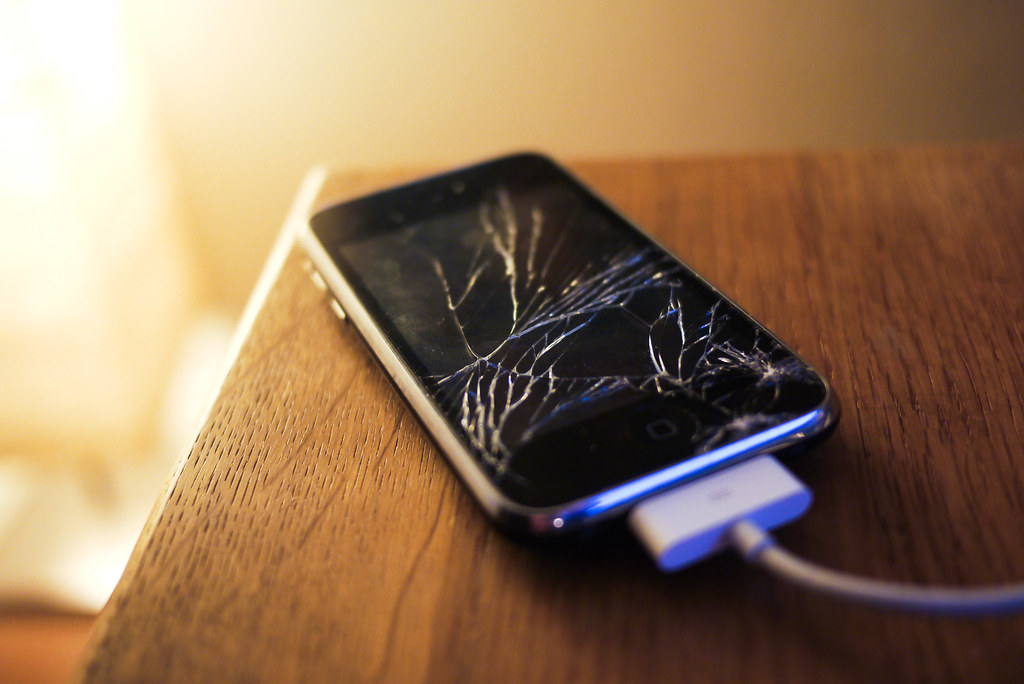
Handing Over Your Handset for Repairs? Do this first!

Almost everyone faces this challenge.  Your handset is wonky and in need of professional attention.  It’s time to take it to the repair shop to fix whatever’s gone wrong and you’re feeling justifiable anxiety.

What if they copy off my data?  What if they damage it further?  What if they install substitute parts?  What if they install malware?  While not all repair shops are unscrupulous, it is always best to take a few steps to add extra protection.

Step 1: Prepare

Prepare your smartphone by doing two things. First, un-encrypting the data.  That's right, remove the encryption security feature temporarily.  This will make it easier to move data to the cloud or another device.  Second, make a note of both the phone IMEI number and the battery serial number (if removable).

Step 2: Wipe After Backup

It may seem extreme, but the best way to protect your data is to not hand it over at all.  Leaving your password on offers some protection, but it can also prevent the repair technician from doing a thorough job or repairing and testing the phone.

Take a few moments to backup the handset to the cloud or a computer, ensure your data is retrievable and then proceed to wipe all settings and data.  In effect, what you are doing is a factory reset to make the phone like the day you bought it.

Step 3:  Remove the SIM & SD card

Protect your privacy by retaining your SIM card.  If the technician needs to make a test call, they should have a compatible SIM on hand expressly for this purpose.  Just be sure to let the technician know if your handset is locked to a specific network.

Similarly, pull out your micro SD card (if you’ve got one installed).  Chances are, you’ve got more than just precious pictures on the card.  Some smartphones save apps and critical data on the removable storage device in order to free up space on the unit.

If you forgot to unencrypt your card before removing it from a wiped handset, your data may be irretrievably lost.  That’s why it’s listed at Step 1; it’s important!

Step 4: Take Pics

Rope in a friend to assist by using their smartphone to take pictures of your smartphone.  Engage your ‘CSI’ self and take multiple pics from various angles including images of any damage, images of the internal components and clear images of the battery including the serial number where possible.

Step 5: Protective Packaging

Don’t transport your phone without protective packaging.  Break out the original box, if you still have it, or some bubble wrap, if handy.  You want to ensure that you don’t pick up any more bumps and scratches between when you transport it to the shop and when they return your repaired handset.

Step 6: Timestamp the receipt

Note the specific date and time your phone left your possession and keep this information with you.  Let’s hope your phone is returned in perfect condition in a short time.  If not, you made need your timestamped receipt to lodge a complaint.  Worse, you made need your receipt to prove that you had no access to your handset for a period of time.  The rest, I will leave to your imagination.


Once you've got your precious instrument back, check it thoroughly to ensure there are no new scratches.  Make sure it is your phone and battery by inspecting the IMIE and battery serial number.  Factory reset the phone one more time.  Install your SIM and micro SD card. Then restore from your backup.

Once you're up and running, it is time to encrypt your data for maximum protection.  Then back it up again.  You're ready to go.  Enjoy your repaired phone!


Wednesday, June 22, 2016

T4L: Pass On Passive Passwords

Advisory: Change all your critical account passwords (email, bank, social media) immediately and often.

I agree, it is troublesome to come up with complex and unique passwords for every online account or service (in my case, 82 and counting), but I believe (from anecdotal experience only thank God) that it is less troublesome than having your data, PC, money and or identity stolen, held at ransom, revealed or deleted.

The Problem
So, here is the background, way back (in tech terms at least) in 2012, there was a data breach.  LinkedIn, Tumblr, MySpace (remember them?) and other sites were hacked, releasing some 117 million login details including passwords into the wild.  I can’t say why the data remained underground so long; I can say, however, that the data is available for sale and is being sold to some bad people (yup, that is a technical term).

This affects you (and me), if you haven’t changed your password in a couple of years or if you re-use passwords across different platforms.  The hackers are, right this minute, using the data to attack your accounts.  And, they have succeeded.  High profile celeb accounts like Mark Zuckerberg's were among those compromised this week.  Think about it, he’s one of the world’s greatest programmers, and he was hacked.  Still feel you’re immune?

The Option
You can check if you've been compromised at: haveibeenpwned.com, but personally, I’m busy.  So, I’d rather skip this step, assume all old passwords have been compromised and set new ones.  Even “the leader of the free world” resets his nuclear launch codes periodically, why can’t you reset a few passwords?

So real is the threat, that several sites forced subscribers to reset their passwords to gain access.  They completely denied access with old passwords.  Why not take their lead and take a moment to reset all your passwords.

The Solution
Before you start to complain about the brain power required to compute and mentally store scores of unique passwords, consider a password manager.  Check out cross-platform options like 1Password and LastPass.  Apple ecosystem dwellers can rely on Keychain.  Trust me, this is not the time to skimp; pay for the best service you can afford and enjoy convenient features and options.

While you're at it, going through all your accounts individually and setting up UNIQUE passwords for EACH account, why not take another moment to enable two-factor authentication (2FA) on every account that supports it.  Recently Google made 2FA simpler and other will follow suit, but that is for another post.

The combination of strong, unique passwords and 2FA is , currently, the best protection against hacking.

Tech4Life airs every Wednesday morning at 8:15 am on @RJR94FM

Monday, March 14, 2016

Dare I Be Invisible?

I’ve thought about it.  Stepping off the grid and becoming completely invisible; online at least.

No identity theft.  No public shaming.  No big data marketing manipulation.  No government intrusion.  And yet still, no utopia.

Being invisible is not interchangeable with being private.  Even in this digital age, we can get up, stand up and fight for our right to privacy while still enjoying the spoils of a connected world.  Ready? Set. Fight!

Just as we would not walk down a dark alley without putting up our guard and tightening our awareness of our environment, we should not traverse the digital domain without consciously monitoring our actions.  To maintain our privacy, we must constantly analyze our browsing habits, social media interactions email practices, mobile use and our passwords to maintain our privacy.

Weak Spots

Let’s start with email.  Sure, instant message (IM) services and social media dominate cyber communications, but email is still the bedrock of the online world.  Phishing scams abound!  Be suspicious of password reset notifications (that you never initiated), requests for money or personal info and viruses as each of these can be an assault on your privacy.

Social media, by its very nature, is the antithesis of privacy.  'Social' is designed for interaction, for sharing, for connections.  Yet, this is the space we must be most vigilant in protecting our identity.  For some, it is easy to forget that chatting on the internet is like chatting with a friend at a bus stop; everyone within earshot can hear.  Even if personal data is exchanged in a Direct Message (DM) versus a feed/timeline, the data is “out there”, in a public space for the world to see if they wish.

Assuming you don’t maintain fake accounts, it is certainly important to review, tweak and update your privacy settings regularly.  Facebook, Instagram (IG), LinkedIn, Pinterest, Twitter, Swarm, Snapchat, Periscope and countless other social media sites are known to change their policy, occasionally with little notification to users.

Then, there are the competitions, promotions and third party apps which are cleverly and specifically designed to mine your data under the guise of the chance at a reward.

Firewalls, anti-virus and anti-malware software, private browsing settings, cookie and ad blockers are all tools in the arsenal against prying eyes, but like a .22 calibre bullet on a meth-head, they are limited in scope if your ISP is tracking your browsing habits.  Advanced weapons like Virtual Private Networks (VPNs), Tor browsers and IP spoofing are not for the technologically challenged.

The myriad of devices collecting, collating and processing our personal data is not limited to laptop and desktop computers.  Think smaller.  Think mobile.  Tablets and phones are arguably the greatest tracking tools ever invented.  Their prominent place in our daily lives simply increases their potency. GPS tracking and tagging, insecure apps, ridiculously simple PINs, improper disposal all threaten our personal security.

A Stitch In Time

Here is the cold hard truth.  Your privacy is your right, but rights are not absolute.  That said, there are some steps you can take to defend your rights.

These days, almost everything has a password … your laptop, tablet and mobile phone, your websites and apps, hell - even your front door!  Start with a strong, unique password.  If there is even the whisper of a hack, change it.  In fact, change it every three months just to be safe.

Then, support (never remove) the password.  Two-factor authentication (2FA) is becoming a lot more popular.  When it is available, take it.  Just be sure that you keep your mobile safe too.

Think seriously about encrypting your data … your email, your IM messages … keep the contents between you and your recipient.

And always make a backup, or three.  Yes, three.  If your data is held at ransom, if there is a physical threat or if it is lost or stolen without any discernible reason, you’ll be glad you have a physical backup, an off-site backup and a cloud backup.  And remember, the backup has got to be encrypted too.

I admit, I am addicted to the many benefits of the grid - online shopping, streaming entertainment, seamless video chats with the family overseas.  So I won’t be stepping off soon.  But, I will be stepping up my privacy protocols and you should too.

Wednesday, May 13, 2015

Surfing Safely

A lot is done to teach kids on how to be safe is this troubled world of ours.  Children are taught how to safely cross the road, not to talk to strangers and wear helmets when riding their bikes.

But what about when kids are online?  Beyond the family desktop or Mommy’s laptop, kids have a unprecedented number of access points to the internet.  The smartphone, the tablet and even the smart TV are all connected to the World Wide Web.

Threats abound in many forms.  Porn, violence and hate speech are all inappropriate content for young children.  The success of social media has given rise to cyber bullying and cyber baiting.  And, let’s not forget, the threat of plain overexposure.

Scary ins’t it?  But fear not.  Savvy parents can protect their children with some preparation followed by education.

Family PC
You are the administrator of your computer, not your kids.  So, set up separate, restricted user accounts for each of your children to limit the content they can access.  Take it a step further and limit how long they can use the device.  You can also consider installing a monitoring app that reports on all your child’s activity online.

Installing and updating a good anti-virus software is par for the course.  Don’t forget to limit pop ups and require a password to install applications.

Mobile Device
Sadly, most smartphones and tablets do not allow for multi-user log ins.  But, that doesn’t mean that restrictions can be implemented.

All mobile devices should require a password for access; this ensures that you know when your child is using the smartphone or tablet.  

By extension, adjust the setting on your device to require a password to install apps even if they are free.  This should prevent kids from loading apps that may be inappropriate.  iPhones and iPads even offer a feature called Guided Access that can lock children into a specific app so they can't just go scrolling through your handset.

For many, phones and tablets are used for content consumption.  Fussy children get less fussy when watching their favorite video, almost like a digital pacifier.  But when the video finishes and bored kids look for the next thing to watch, make sure that you have already configured the settings to restrict any content rated PG13 or higher.

Keep your location, and your child’s location, private by disabling the GPS tracking setting.  Most devices, by default, include the location data of where pictures and videos are taken embedded in the file.  Nefarious characters can extract that information to build a profile of your activities.  

Smart TVs
Just as the digital cable box allows you to set several restrictions with a PIN to control use of the TV, smart TV’s also have built in parental controls.  Use them.

Education
The best defense against internet threats is education.  Make sure you talk to your children and let them know to:

* never give out personal information online
* never post pictures or video without permission
* never bully others online
* always report rude or suspicious activity

Educate yourself too by sharing experiences with other parents, caregivers and teachers.  Just as you would supervise your child when playing sports, so too must you supervise their activity online.

Children need to be free to explore and learn, within limits designed to keep them safe online.


Sunday, February 15, 2015

T4L - New Age Protection

I am updating my being safe online tips.  After all, it is a new year and there are new threats out there.  What worked last year simply may not be enough for 2015.  So here goes; make some time to not only read but action these safety steps.


Step 1: Back up, run anti-virus, back up again
Do it now, do it again and again.  Only the first back up is hard, each subsequent back up is incremental and therefore doesn’t take much time.  Backing up is your first and best defense against data loss which can happen for more reasons than I have space to mention.  Many systems can automate the process to an external drive or cloud service, so your only excuse is .. none.

Make sure that you download, install, run and update a good anti-malware programme, even for your mobile device.  Get rid of or prevent viruses, adware, spyware and other wares designed to destroy your life.

Step 2: Set Strong Unique Passwords
Passwords can be a pain, but they are also your first line of defense against attacks.  Forget the old rules, passwords now need to be longer than eight characters, need not be a recognizable word and need to be unique for each account.  Yes, you read that right - each account.  Since remembering scores of complicated passwords would be too much, it is time to breakout a good password manager to keep things in check.

Step 3: Secure Everything
It can be tempting to jump on a free WiFi hotspot, skip the hassle of configuring a firewall or browsing quickly through unsecured websites, but try to remember how temptation worked out for Eve.

Take a moment to set up a new password on your home wireless router and all internet enabled devices like IP cameras.  Take a moment to set up a firewall on your ‘outer, turn off Discovery and disable file sharing, especially if you plan to log on to public WiFi.

Step 4: Avoid Scams
Certainly it is not recommended that you click on links in email, but if you do, make sure there is a little lock showing in your browser window confirming that the site is secure.

Speaking of security, secure your credit card by using a dedicated ‘online card’ issued by your bank, a one time/pre-paid card or a service like Paypal to create a safety zone around your prized plastic.

Online email services like Google, Yahoo! and Outlook all offer built in virus scanners to reduce the likelihood of nefarious downloads, but it is good to remain vigilant.

Step 5: Repeat
Yes, repeat.  Continuous protection requires continuos updating.

Here’s to a safe 2015!

Tech4Life airs every Wednesday @ 8:15am on RJR94FM

Thursday, July 15, 2010

Tech: IT Easy - Get a life | And your phone is not it


When the realisation dawns on you that all your contacts, pictures and emails are gone, it can be devastating. Admit it, our phones are an integral part of our lives. Personally, I can't even remember what life was like before the BlackBerry phone. But it is not the phone that is so important, it's the information contained within that is truly part of the fabric of our lives.

Yet, we treat our phone with such scant regard. We leave them at the bank, the restaurant and our friends' house. We keep them out in the open and thieves steal them. We simply forget where they are. Fortunately for us, technology can find our phones for us.


Send feedback to: techiteasy@carlettedeleon.com

Tuesday, July 13, 2010

Tech Time: Protecting Your Phone

If you are prone to losing your Blackberry, RIM has found a solution for you; of course, iPhone found it first.

Later this year, you will be able to install Blackberry Protect and app which will help you “wipe, lock or locate” a lost device with the help of your PC (sorry Mac users). To make it work, you’ll be required to download and install the Blackberry protect app to your handset and your PC.

You can use the programme to help you locate a lost phone in a couple of ways. First, you can view the location of the phone on a map or your can activate the “loud ring” feature which will override any prior audio setting which might have been on the phone. If someone else has found the phone, you can send them a message – a custom message you compose can appear on the phone’s screen, even if the phone is locked.

Speaking of locked, if you forgot to lock you phone before losing it, use Blackberry Protect to lock it remotely or, for an extra level of protection, wipe all the data on the phone. Wiping all your data on the phone itself does not mean that you have lost all your data. Blackberry Connect allows you to back up you contacts, calendar, tasks, browser bookmarks and text messages over WiFi or 3G to the cloud, making the information instantly accessible if you wish to migrate the data to a new device.

These features are all similar to Find My iPhone successfully introduced by Apple earlier this year. Though the Find My iPhone app is free from the iTunes store, it only works with a US$99 Mobile Me subscription. Regardless of platform, these “wipe, lock and locate” features only work if the phone is on AND connected via WiFi or 3G. BES (Blackberry Enterprise Server) users, iPhone users and adventurous third-party software adopter already have access to these features, but the introduction of Blackberry Protector in the fourth quarter will provide a sense of security for the causal BB user – that is, if they don’t mind all their data being stored in the cloud.

Windows 7 Tip: Win+M minimizes everything


Interface with us:
On email: famefm@rjrgroup.com
On SMS: 876-878-FAME (18768783263)